How to track Google AI Overviews visibility with Search Console and a query log
Citable · 2 November 2026 · 11 min read
Search Console's Generative AI report shows how many times a link to your site appeared in AI Overviews and AI Mode, grouped by page, country, date and device. It does not show clicks, position, CTR or the queries behind each citation. To fill that gap, keep a fixed list of queries, check them by hand or with a tracker, and log each result with its date and the surface that appeared.
What to do first
- Export weekly: download the Generative AI report by page and date. It gives impressions only, so keep your own history.
- Don't add it to Web totals: those impressions are already counted there.
- Fix your query list: pick the buyer queries that matter and check them on a set schedule, logging date, market, device and citations.
- Check eligibility first: confirm a page is indexed and can show a snippet before you rewrite it, then change one thing at a time.
Why can't you see which queries cite your site?
You may have rankings and traffic figures, yet no way to tell whether Google's AI answers cite your pages or which questions trigger them. The standard reports were not built for this. Google's documentation says sites shown in AI Overviews and AI Mode are counted in the Performance report within the "Web" search type, with no separate filter named for them.
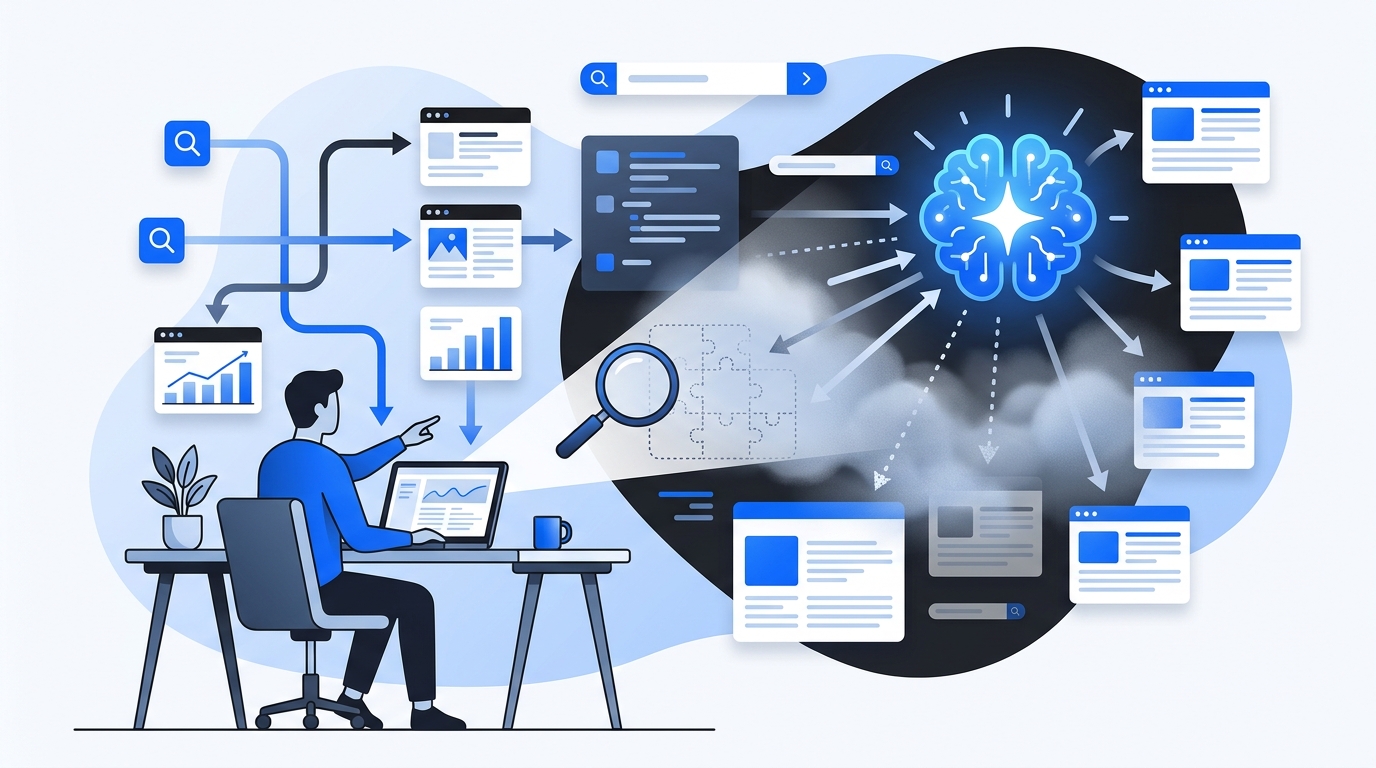
Search Console now has a dedicated Generative AI performance report. It counts impressions of links to your pages in AI Overviews and AI Mode, split by page, country, date and device. Google said the reports had reached all websites worldwide as of August 31, 2026, after a phased rollout that began in June 2026.
The report has clear limits. It carries no clicks, position, CTR or query data, so it cannot show which question led to a citation. It also misses a case that matters. Insidea calls it the biggest blind spot in AI Overview tracking: Search Console does not show when your content is cited without receiving a click.
The fix is to use the report for what it does well, which is page-level trends, and to build the missing query layer yourself. The sections below cover both.
Where is the report, and why do the numbers look doubled?
Two practical snags show up early: finding the report and reading its totals.
Finding the report
The sources do not agree on where it sits. Pragma Code describes a "Performance → Generative AI" path. eSEOspace notes that Google's help page does not describe a menu path at all. Look in your own interface rather than relying on a path you read elsewhere.
eSEOspace also notes that Google does not state a minimum number of impressions needed for the report, or whether the report is available through the API. If you plan a dashboard that pulls the data automatically, confirm API access first. Otherwise plan around manual exports.
Reading the totals
Do not add the AI figures to your Web totals. According to eSEOspace, AI impressions are already inside your Web impressions, so adding the two counts them twice. Treat the AI report as a slice of the Web number, not an extra number.
A weekly export routine
Search Console's AI report counts impressions of your pages' links in AI Overviews and AI Mode, so give it a fixed routine:
- Export: download the report by page and date once a week.
- Name: put the export date in each file name.
- Keep: store every file in one folder, so you build a history that does not depend on what the interface shows later.
- Compare: look at which pages gain or lose impressions from week to week, and note any pages you edited in that period.
How do you find which queries trigger an AI Overview?
Search Console cannot answer this, so you check queries yourself. The method is simple and costs nothing but time.
Start with a fixed list of queries your buyers actually type, and keep it the same from week to week so results can be compared. Search each one in a private or incognito window. Insidea recommends this because it removes personalization from the results. For each query, note whether an AI Overview appears, whether your domain is cited, and which competitors are cited.
Log every check in a sheet with these columns:
- Query: the exact search term, unchanged between checks.
- Date: when you ran the search.
- Market and device: the country, and whether you searched on desktop or mobile.
- AI Overview shown: yes or no.
- Your domain cited: yes or no.
- Competitors cited: the domains that appeared.
- Surface: AI Overviews or AI Mode, if you can tell.
Each row needs a date because AI results change and can differ by market and device. A single check is a snapshot, not a verdict.
Many of your queries will show no AI Overview. Google says AI Overviews are only shown when its systems judge them additive to classic Search, so they often do not trigger. Log those queries anyway. A "no Overview" row tells you where AI answers are not a factor today, and it lets you spot the day one starts to appear.
If you are a local business or a small shop, start with the queries closest to a purchase: "best [product] for [use]", "[service] near me", comparisons between brands.
Do you need a paid tracker?
Not to start. A weekly manual check on a fixed list covers the basics. Trackers help when the list grows or when you want checks to run more often than you can manage by hand.
Tracker vendors describe what they do like this:
- AIclicks says it runs your searches every 24 hours and records whether an Overview appeared, whether you were cited, and who else was.
- WorksBuddy argues that daily checks are the practical minimum for competitive keywords because AI Overviews can change within 24 to 48 hours. That is a tool vendor's opinion.
- Semrush offers a free AI Overviews Visibility Checker that says it finds brand mentions and tracks presence across key queries.
The free checker is a reasonable first look. Keep your own log next to it, so you have a record that does not depend on one vendor's tool.
Whatever you choose, expect to combine sources. Meltwater puts it plainly: tracking AI Overviews requires a mix of tools because no single platform provides the full picture yet. In practice that means Search Console for page-level impressions, plus a query log or tracker for the query-level view.
Which surfaces does the Search Console report cover?
Fewer than most people assume. The report reports AI Overviews and AI Mode together, so it cannot tell you which one showed your link. Google's documentation says the two may use different models and techniques, so the set of links each shows will vary. That is a reason to record the surface in your own log whenever you can see it.
According to eSEOspace's reading of Google's help page, coverage looks like this:
| Surface | In the Search Console AI report |
|---|---|
| AI Overviews | Yes |
| AI Mode | Yes |
| Gemini app | No |
| ChatGPT | No |
| Copilot | No |
| Perplexity | No |
| Claude | No |
For the difference between the two Google surfaces, read the guide on how AI Mode differs from AI Overviews. For the assistants outside Google, one prompt is not enough to judge a tool; see the guide on checking whether ChatGPT recommends your brand.
Should you opt out of AI features to avoid the tracking problem?
Search Console now has a control under Settings, in a section called Search generative AI, that lets a site choose inclusion or exclusion for generative AI features.
The trade-off is direct. Google says that sites that opt out will not receive traffic or impressions from its generative AI features. Opting out therefore removes the very data you are trying to track.
It will not help your regular rankings either. According to RelevantAudience, Google states that generative AI-specific controls are not ranking signals for the non-generative parts of Search.
If your goal is to be cited, the opt-out works against it. If you have a legal or editorial reason to stay out, you can use it knowing what it costs.
Google also says it has seen that clicks from results pages with AI Overviews are higher quality. That is Google's observation about its own results. Compare it with your own engagement data before you rely on it.
Why isn't your page cited, and how do you check a fix?
Start with pages that earn impressions in the Search Console report or show up in your log, but are missing from the queries that matter to your business. Those are the candidates for work.
Check the basics before you touch the copy. Google says a page must be indexed and eligible to be shown with a snippet to be a supporting link in AI Overviews or AI Mode, and that indexing and serving are not guaranteed. Google is also clear that no special work is needed:
"There are no additional requirements to appear in AI Overviews or AI Mode, nor other special optimizations necessary." — Google Search Central
So the first job is ordinary: make sure the page can be crawled, indexed and shown with a snippet, and that it answers the query better than the pages currently cited. Open the pages your competitors have in the Overview and compare what they cover that yours does not.
Then change one thing at a time on each page, and record the date and the exact edit in the same sheet. If you change several things at once, you cannot tell which one moved the result.
Re-run the same query list after a few weeks and compare citations before and after. One result is not proof. Look for a pattern across several queries, and watch the Generative AI report for the edited page over the same period.
To connect AI referrals to actual visits, the guide on tracking traffic from ChatGPT in GA4 explains the setup. The same sheet then holds your edits, your citations and your visits in one place.
Next steps
- Open Search Console, find the Generative AI report in your interface, and export it by page and date. Save the file with today's date.
- Write your fixed query list: the buyer questions that matter most. Run each in a private window and log the date, market, device, surface, whether an Overview appeared, and who was cited.
- Check indexing and snippet eligibility for the pages you want cited, then edit one page and record the change.
- Repeat the same list every week, and compare against the weekly exports.
- If you would rather have the measuring done weekly across more assistants, Citable does it that way: it measures whether ChatGPT, Gemini, Perplexity, Claude, Grok and Google AI cite or recommend a site, and its free AI visibility report checks whether ChatGPT mentions yours.
Frequently asked questions
Does Google Search Console show which queries triggered my AI Overview citations?
No. The Generative AI report has no clicks, position, CTR or query data. It shows impressions by page, country, date and device. To connect citations to queries, check a fixed list of queries yourself and log the results.
Is there a free way to track AI Overviews for my brand?
Yes. Search your target queries one by one in a private window, as Insidea describes, and log whether an Overview appears and whether your domain is cited. Semrush also offers a free AI Overviews checker for brand mentions across key queries.
Should I opt my site out of Google AI Overviews?
Only if you have a reason to stay out of generative AI features altogether. Google says opted-out sites receive no traffic or impressions from those features, so you also lose the data you want to track.
Does opting out of AI Overviews affect my regular Google rankings?
According to RelevantAudience, Google states that generative AI-specific controls are not ranking signals for the non-generative parts of Search. Opting out does not help those rankings, and the reverse is not described either.
Sources
- AI Features and Your Website | Google Search Central
- How to Check Google AI Overviews
- Google Search Console AI Reports Rolled Out Worldwide
- Google Search Console AI Performance Reports: What They Track (and the Clicks Problem)
- How to Track Google AI Overviews and Citations?
- Google Search Console: Generative AI Performance Reports 2026
- Reading Search Console's Generative AI Performance Report - eSEOspace
- Google AI Overview Tracking: Methods, Tools and Limits
- Track Your AI Overview Visibility
- Google AI Overviews Tracker: How to Track Your Visibility
- AI Overviews Visibility Checker
- Tracking Google AI Overview Performance: Brand Monitoring Guide
- Search Console Now Shows Your AI Overviews Impressions. Here Is What I'd Actually Do With That
- Google gives site owners a toggle to exit AI Overviews and AI Mode
- New opportunities, control and insights for website owners
- What are Google AI Overviews? A guide for site owners
Keep reading
6 November 2026 · 9 min read
Step by step: how to monitor competitors in AI search
Build a fixed set of buyer prompts, run them on the AI engines your buyers use, and track share of voice and cited sources over time to monitor competitors.
5 November 2026 · 7 min read
FAQ pages that AI assistants quote: what the evidence shows
Write each FAQ heading as the question a buyer types and answer it in one or two standalone sentences. Schema alone showed no citation lift in tests.
4 November 2026 · 7 min read
Does Schema Markup Help in AI Search? What the Google and Ahrefs Data Show
Schema markup is not a proven lever for AI citations: Google says it isn't required and an Ahrefs test found no major uplift. Here is what to do.